Compensate employees' overtime with time off.
Activate time off compensation
- On your sidebar, go to Settings
- In Time, select Time tracking
- Select the Time tracking policy
- Open the Compensation tab
- Activate Compensate with Time off

Balance
The first setting is the Balance, this refers to the Balance amount on the employee’s timesheet, the Balance shows the difference between regular worked hours and planned hours. The balance can be reset to 0 either:
- Monthly
- Yearly
- Never
- Custom Period

The balance is found at the top of the employee’s time tracking:

The balance is important as is displays if the employee hasn’t reached their planned hours (negative) or if they have worked more than their planned hours (overtime).
Set up time off compensation
- Once you active the Compensate with Time Off, the first setting is deciding how often the Time Off counter consults the balance. In the case there is overtime in the balance, it will be moved to the time off counter.
Choose how often you want the time off counter to update:- Daily: the time off counter will consult the balance and update daily
-
Monthly: the time off counter will consult the balance and update the very last day of the month

- Next, you can choose how much overtime is transferred to the time off counter.
- All overtime worked: All overtime will be transferred to the time off counter
-
Overtime worked beyond limit: overtime above the set limit will be transferred to the time off counter, time within the limit will remain in the balance.
For example, the limit is starts at 3 hours. Employees will have to work more than 3 hours to start accumulating overtime in the time off counter.
Employee Erica works 10 hours overtime, therefore 7 hours will be transferred to the time off counter, and 3 hours will remain in the balance.This limit has the same reset sequence as the balance, therefore if the balance is set to Never the limit won’t reset. If the balance is set to Monthly, then the limit will also reset monthly.
Time remaining in the balance can be compensated in payroll manually, if payroll compensation is enabled and at the end of the cycle. Learn about compensation through payroll here.
- A limit can be applied on the overtime counter, overtime that goes above this limit will be discarded.

The limit here is set at 5 hours. Employee Erica works 10 hours overtime, but the limit will only allow 5 hours to be transferred to the time off counter.
- Finally, there is the Negative balance settlement, this configuration is used when an employee doesn’t reach their planned hours, so the negative balance value can be compensated through the time accumulated in the time off counter.
Negative balance settlement has two setting options:-
Until time off counter reaches 0: If the employee generates negative hours in their balance this will be deducted from the time off counter until it reaches 0. Beyond that, the negative amount will be taken away from the balance in the employee’s time tracking.
For example, you have a balance with 0h and a time off counter with 2h. If you generate -3h, the balance will show -1h and time off pool 0h.
-
Until time off counter reaches 0: If the employee generates negative hours in their balance this will be deducted from the time off counter until it reaches 0. Beyond that, the negative amount will be taken away from the balance in the employee’s time tracking.


-
Unlimited: If the employee has negative hours in their balance this will be deducted directly from the time off counter and can enter negative values.

Create a time off allowance
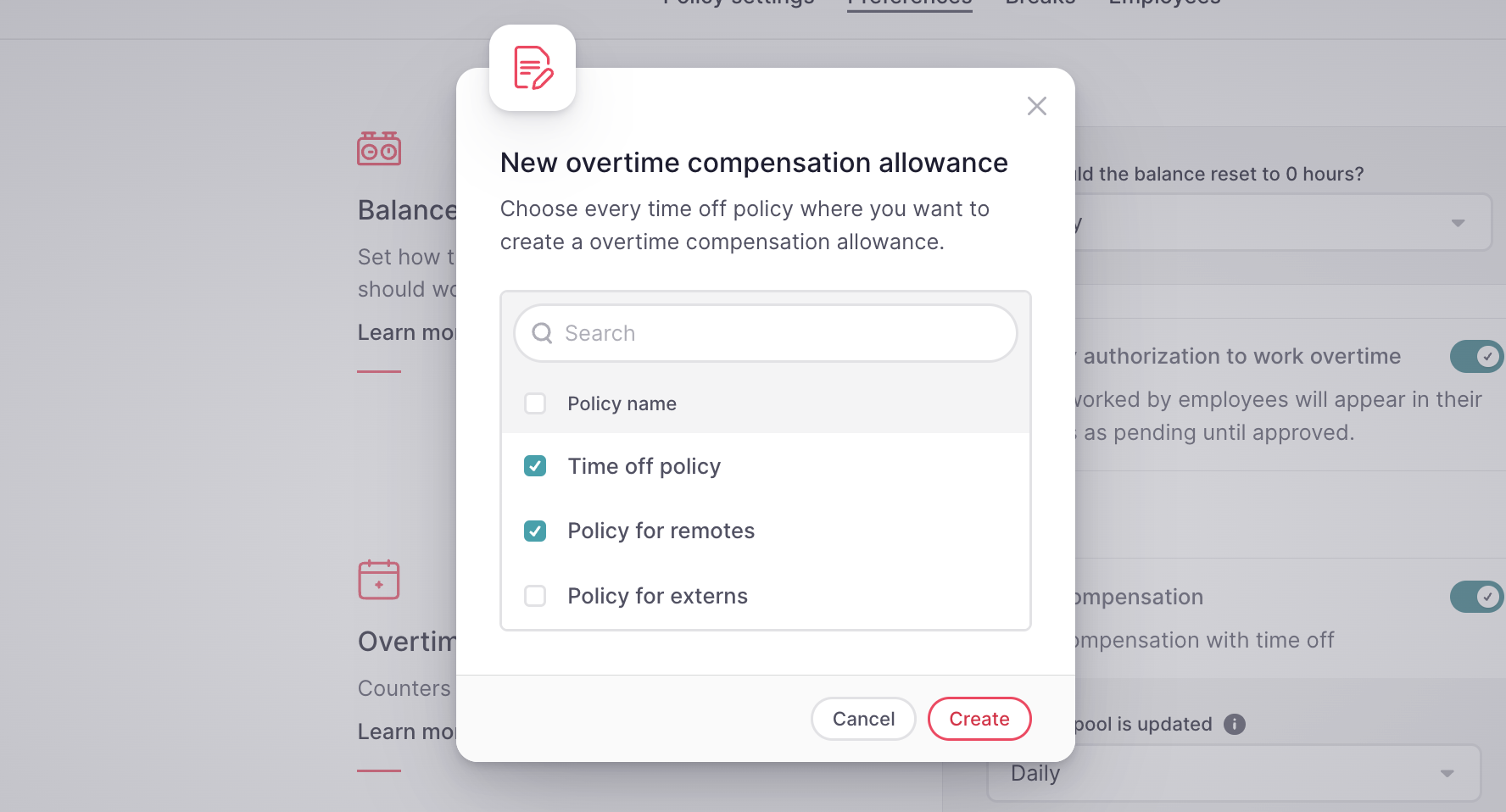
- Click on Create a time off allowance
- Choose every time off policy where you want to create a overtime compensation allowance
- Click on Create
If you need to change or check the overtime compensation allowance, you can find it in the Time off settings:
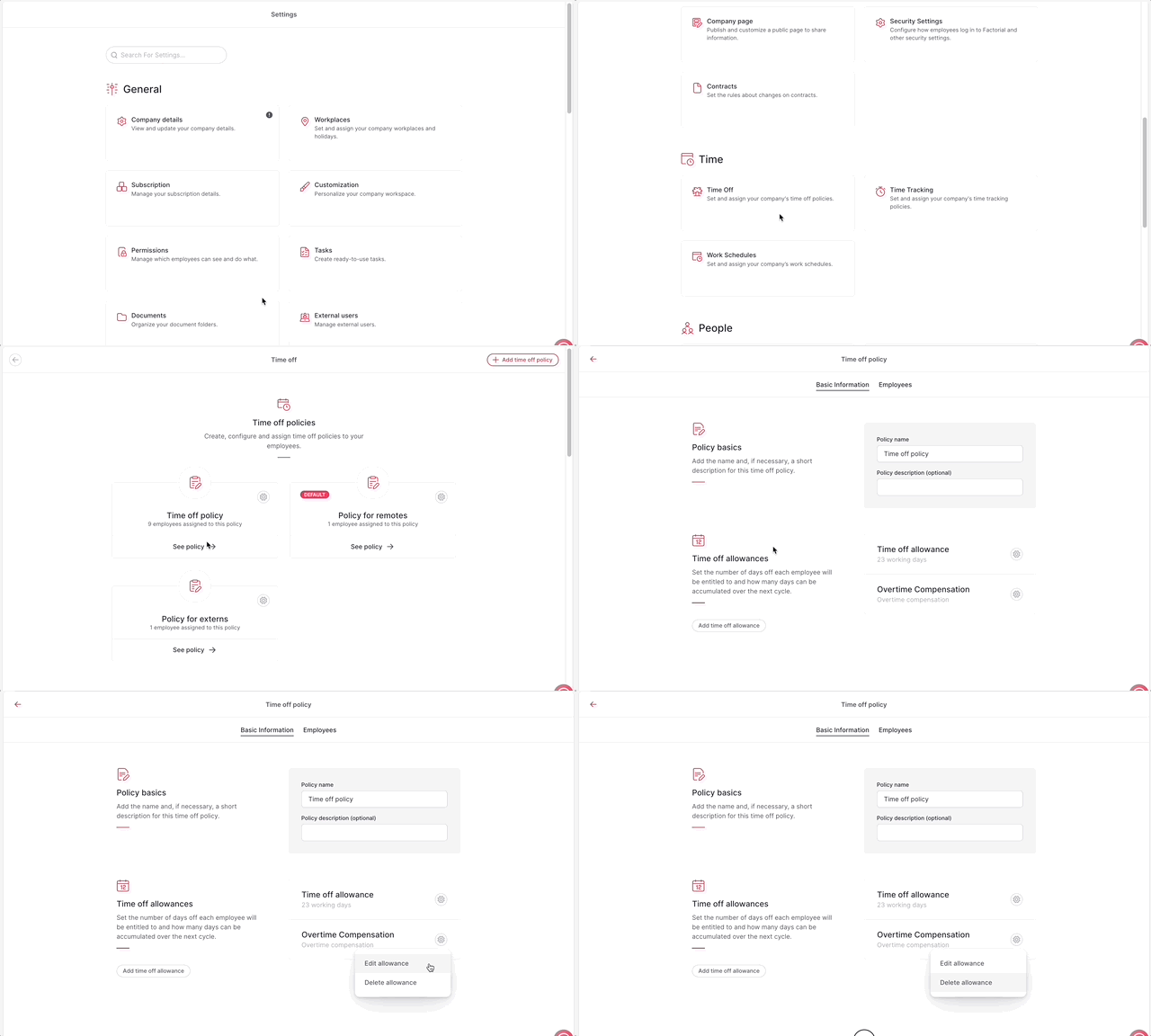
- On your sidebar, go to Settings
- In Time, select Time off
- Select a Time off policy
- In Time off allowances, you will find the overtime allowance
- Click on the gear icon to edit or delete the allowance
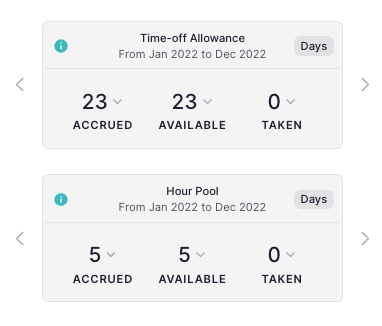
Check your employees' time off
- On your sidebar, head to the Employees
- Choose the Employee you want
- Click on the Time Off section
- A new counter will appear with the Overtime compensation
About overtime compensation through Payroll
About overtime request and approval