Factorial IT’s SaaS Management solution enables your organization to manage access to business applications in a secure and centralized way. By connecting your applications to Factorial IT, you ensure that users are provisioned automatically, authentication is unified, and access rights are applied consistently across your tools.
This article explains the steps required to connect an application to Factorial IT SaaS Management.
[upcoming] Automated Saas Mapping
If you are using Google Workspace, you can connect it in Identites & Access. It will automatically map all the applications for which your Google Workspace is used as a SSO connector.
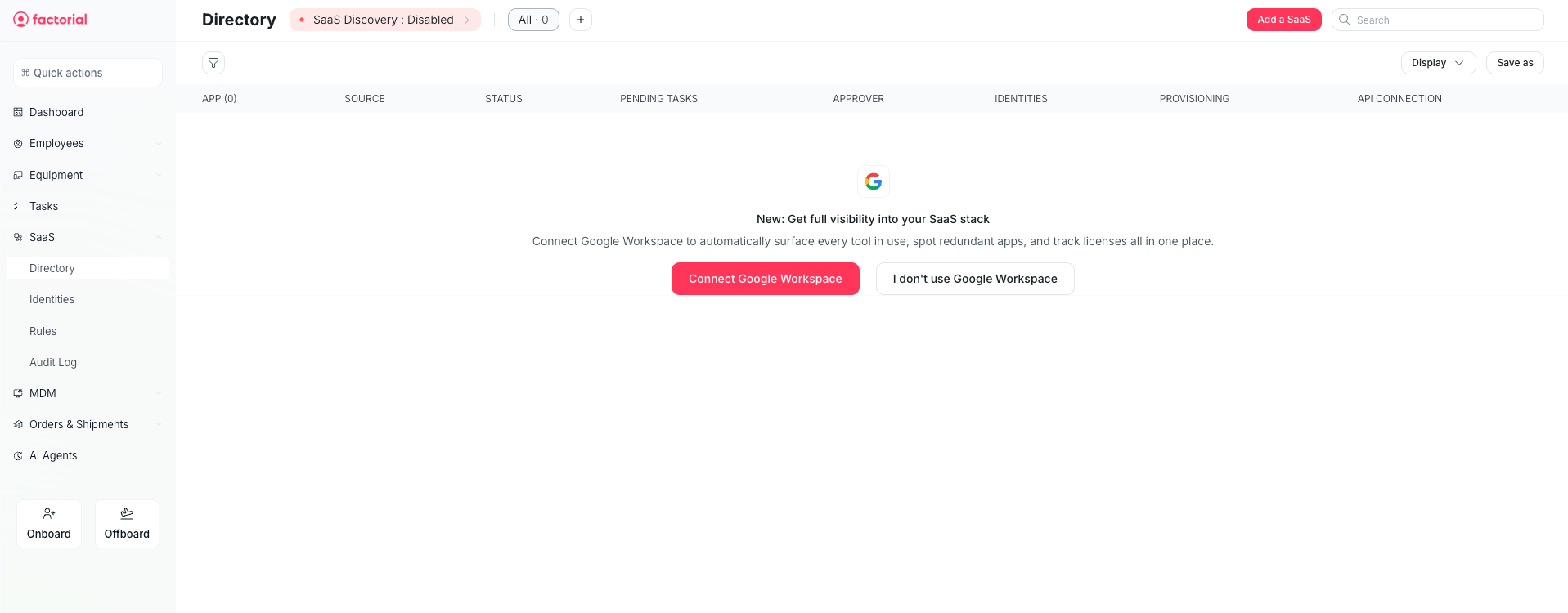
Once it’s connected you can see all the identities related to each app and define a specific owner.
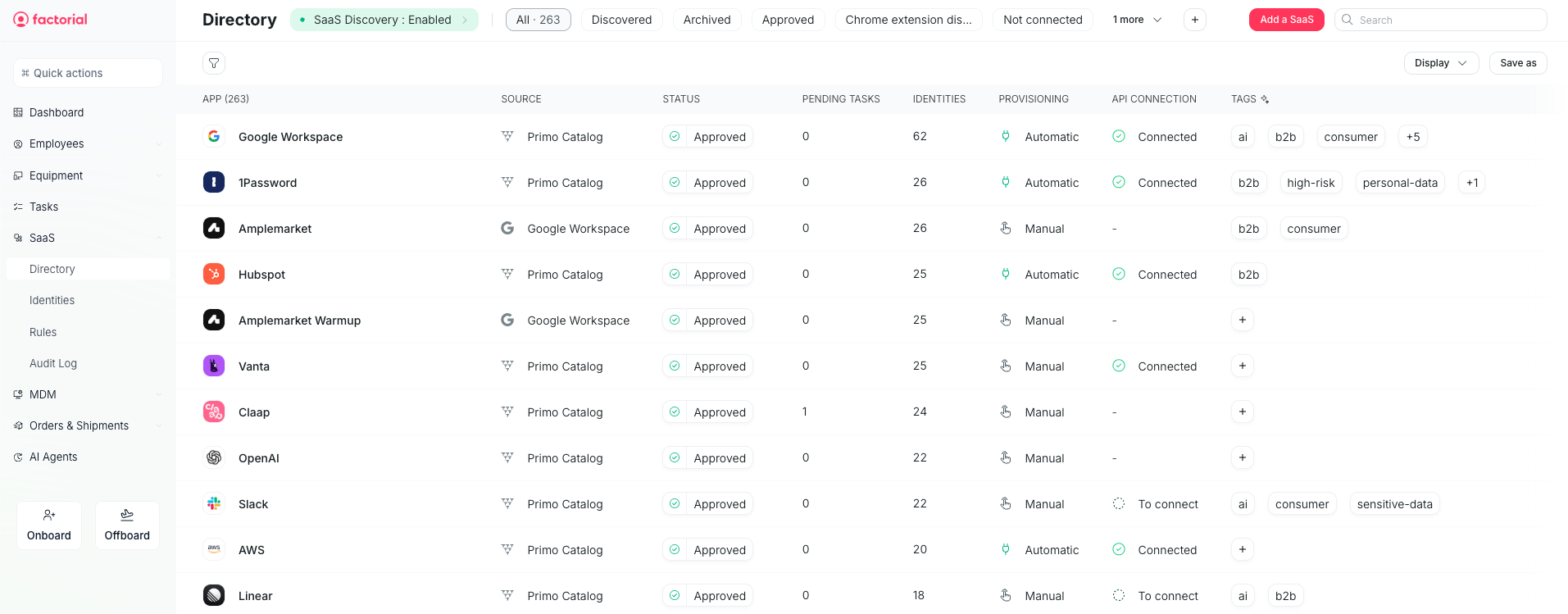
Access the Apps catalog
- Sign in to the Factorial IT cockpit
- From the navigation menu, go to SaaS
- Select Identities and Add a SaaS
The Apps catalog contains a list of applications that can be directly integrated with Factorial IT.
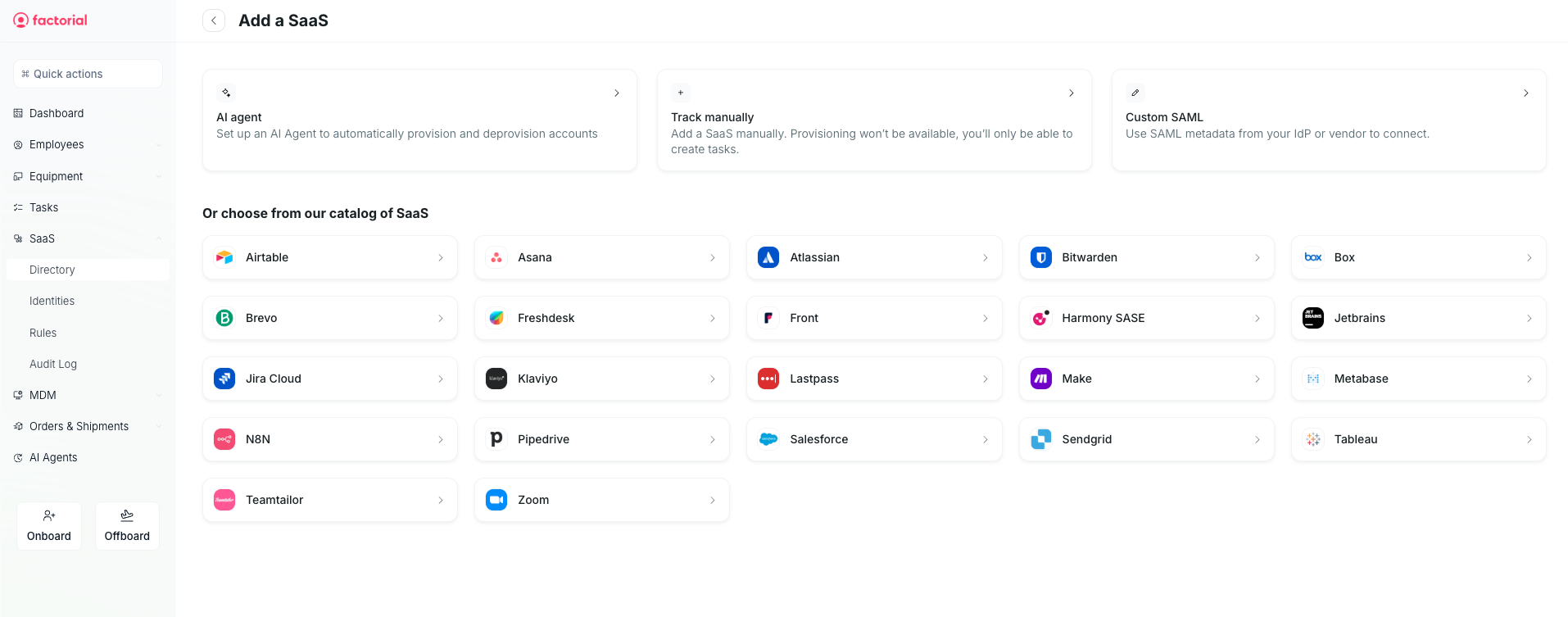
Select and configure the application
- Locate the application you want to connect.
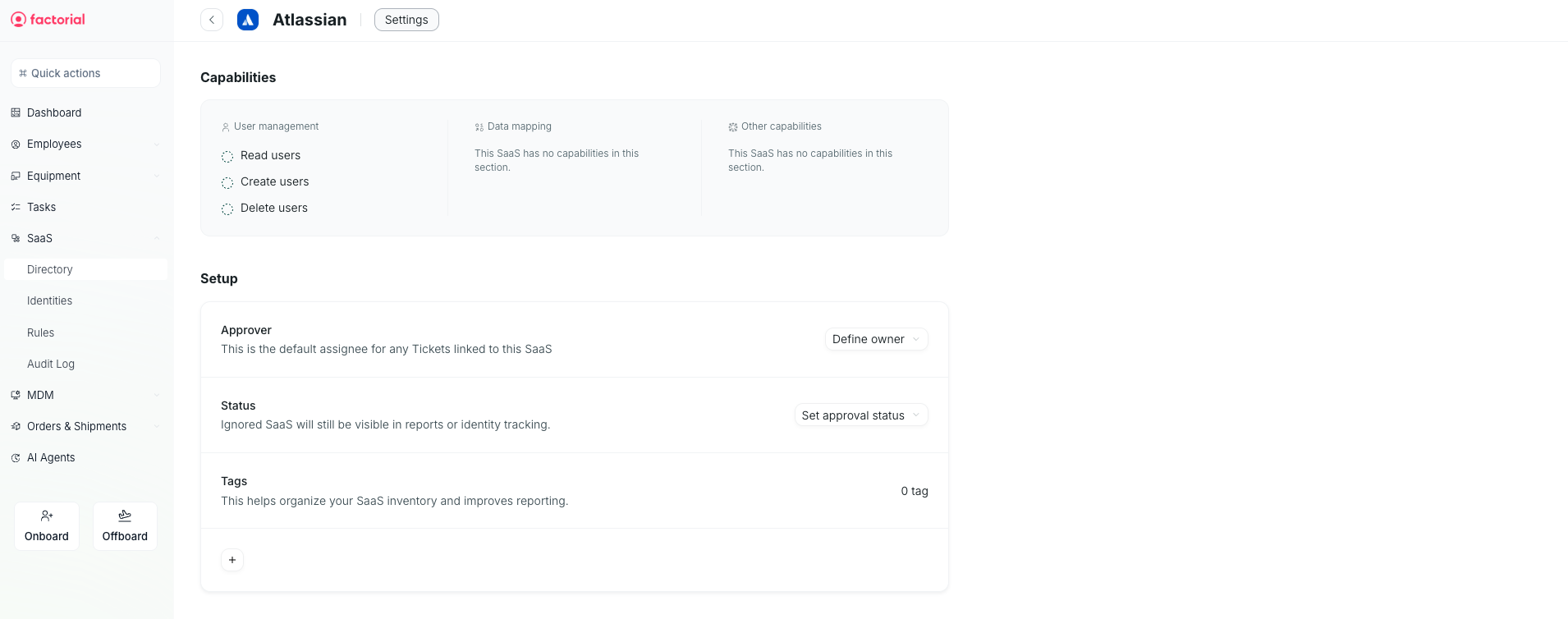
- Click on the application to open its configuration page.
- Follow the step-by-step instructions provided.
The configuration steps vary depending on the type of application:
- Single Sign-On (SSO): You may need to provide metadata or certificates to establish trust between Factorial IT and the application.
- SCIM provisioning: You may need to enter API credentials to allow Factorial IT to create and update user accounts automatically.
- API-based integrations: Some applications require you to generate and input API keys.
Factorial IT provides on-screen guidance for each application to complete the setup
Conclusion
You can click on the Logs tab and verify the sync is active.
If you think your plan is insufficient to configure your app, you can use the AI-based connection.