Provisioning ensures that user accounts are automatically created and updated in connected applications according to the rules you define. By configuring provisioning in Factorial IT SaaS Management, you can assign specific applications and roles to targeted groups of employees.
This article explains how to set up provisioning using Rules.
Access Rules
- In the Factorial IT console, go to Identities & access
- Select Rules
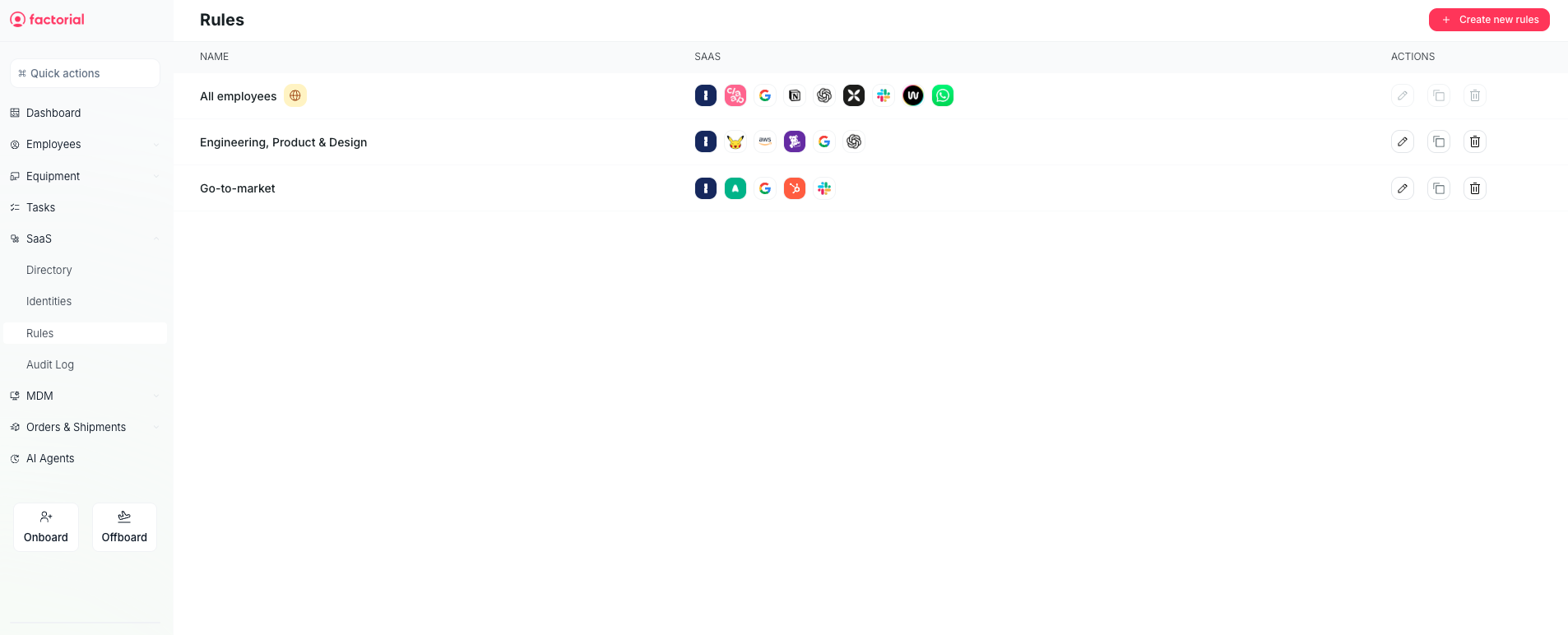
- Either update an existing rules or create a new one to manage provisioning rules
Create new Rules (optional)
If you need to target a new group of employees, create a dedicated rule:
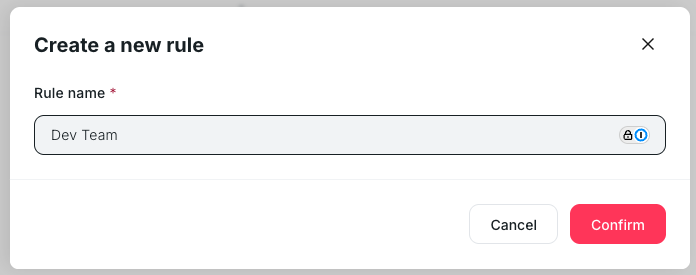
- Click Create a new rule
- Enter a name for the rule (e.g., Dev Team)
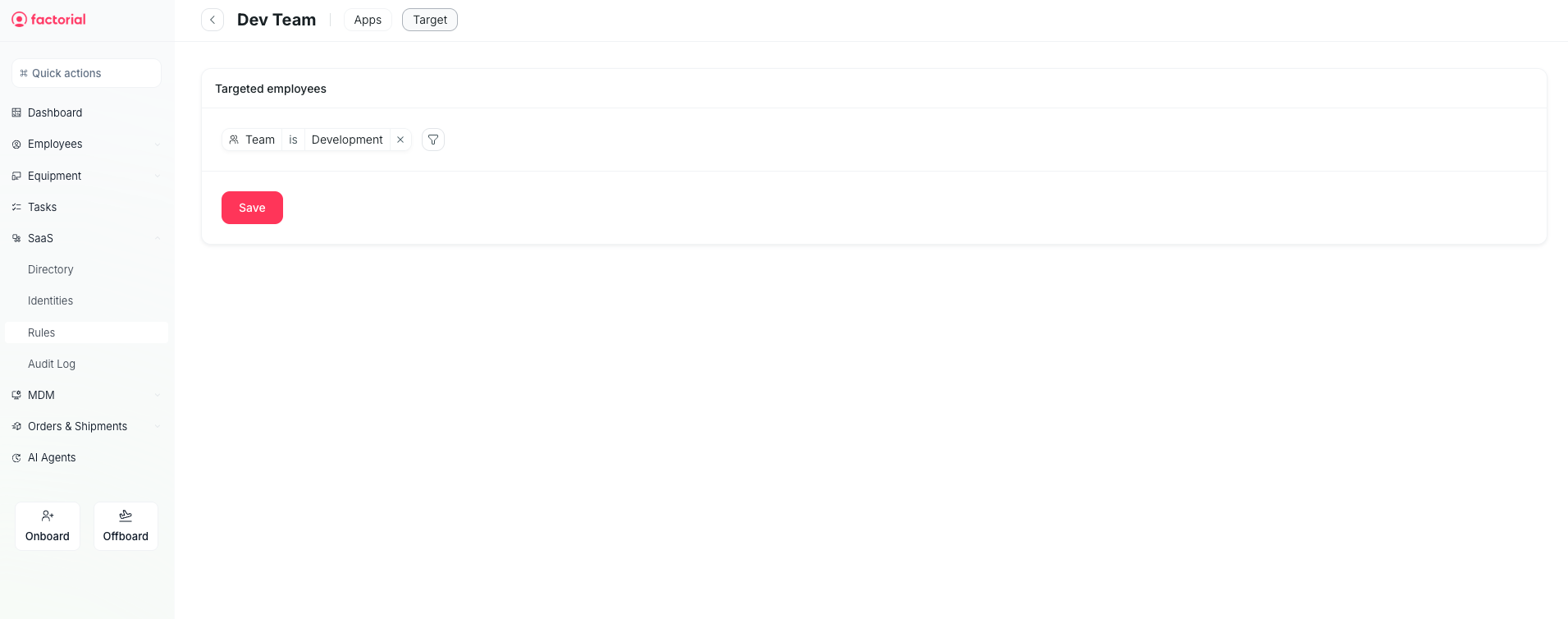
- Define the targeting conditions under Targeted employees (for example: Team is Development)
- Save your rule
Enable provisioning for an application
- Open the rule you want to use
- Go to the Apps tab
- Select the application you have already connected (e.g., Zendesk)
- Toggle Provisioning to enable it
- Under Roles selection, choose the role you want to assign to the targeted employees
For example, to assign the Light agent role in Zendesk to your development team:
- Create or edit the Dev Team rule.
- Define targeting: Team is Development.
- Select Apps > Zendesk.
- Enable Provisioning and assign the role Light agent.

Result
Once provisioning is enabled and saved:
- Users matching the rule’s targeting conditions are automatically created in the application if they are not already present.
- Assigned roles (e.g., Zendesk Light agent) are applied automatically.
- Any changes to users in the HR system will be synchronized with the application through Factorial IT.
This ensures that employees always have the right level of access without manual account management.