A workplace refers to a specific physical location or establishment where employees carry out their work.
Keep in mind the distinction between workplaces and legal entities: A workplace is more focused on the physical aspect of where work takes place, whereas a legal entity encompasses the entire legal structure and identity of an organization.
Where to find workplaces
- On your sidebar, head to Settings
- In General, click on Workplaces

Important: Employees can only work from one workplace at a time. Even if multiple workplaces are assigned to an employee, they must select the workplace where they are actually working for that day or shift.
Workplaces can only be archived. They cannot be deleted.
Workplaces on the map
Workplaces now open on a map that shows all your company's sites, with the list beside it. When you create a workplace, you pick its address from suggestions, so the workplace is placed on the map and its city, region and time zone are filled in for you.
Availability: Workplaces on the map is available for all companies created from 24 November 2026. Existing companies will be moved gradually. Until then, they keep managing workplaces from Settings > General > Workplaces, as described in the sections below.
Where to find it
- On your sidebar, go to Organization
- Click on Workplaces, next to Employees, Teams and Org chart
Map and table views
- The page opens on the map. Search for a workplace and the map moves to it. Its panel shows the address, how many people work there and who they are.
- Switch to the table view to see the address, country, employees and time zone of each workplace. You can also add headquarters and phone from the column picker.
How to create a workplace on the map
- Start creating a new workplace
- Type the workplace name
- Start typing the address and pick one of the suggestions. A map appears with the pin
- If needed, drag the pin onto the door of the building
- Click on Create
If you don't have an exact address
Enter the address by hand and select the region and city from the list. The workplace shows Not on the map until it has a pin.
Cities in your language
Cities come from a shared catalogue, so each person reads them in their own language. Different spellings of the same city, such as "Sevilla" and "Seville", find the same workplace.
Create workplaces with One
You can also ask One to create a workplace and move an employee there, for example: "Create a workplace at Calle Larios 5, Málaga and move [employee name] there".
How to add a new workplace
- On the Workplaces page, click on + New workplace, in the upper left corner
- Enter
- Workplace name (mandatory)
- Phone number
- Address
- Adress additional info
- City
- Post code
- State/province/region
- Country (mandatory)
- Time zone (mandatory)
- Click on Save
The time zone will only affect the hours displayed in Shift Management.

Non-mandatory items such as address can be added later.
How to add employees to the workplace
- Within the workplace, click on Employees
- Click on Add employees in the upper right corner
- Select the employees
- You can add all employees by clicking on Select all
- Click on Assign Employees

How to assign multiple workplaces
You can assign multiple workplaces to the employee.
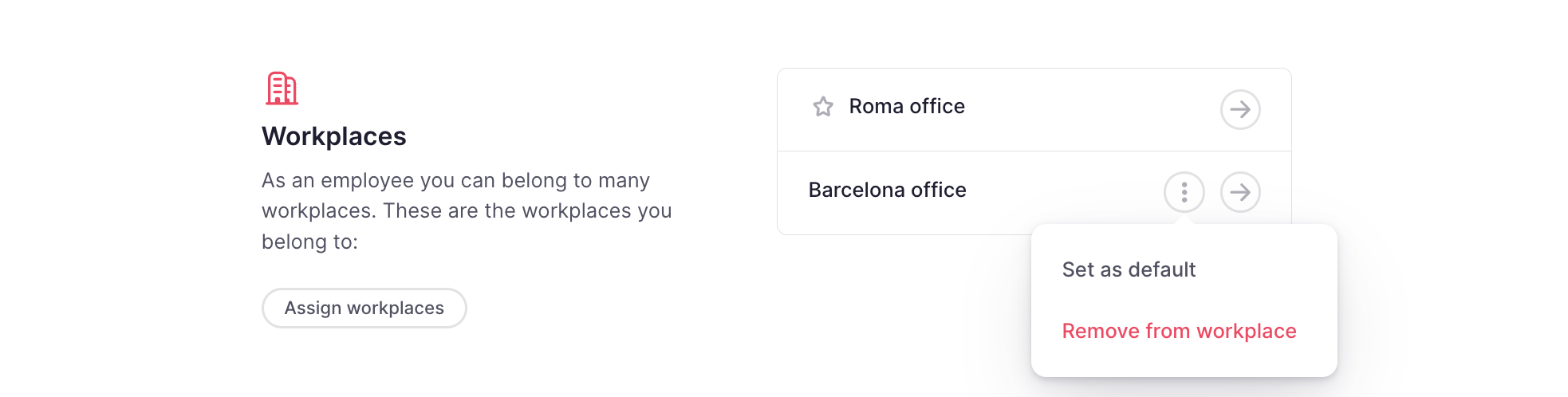
If you assign multiple workplaces, you can choose which one is the default. The default workplace is used for Time Off and time tracking.
- On your sidebar, go to Organization
- Open the employee's profile
- Scroll down to Workplaces:
- To assign another workplace, click on Assign Workplaces
- To set the default, click on the three dots and select Set as Default
How to add public holidays to the workplace
- On the Workplaces page, click on See workplace to open the workplace
- Open Bank holidays tab
- Click on Add bank holidays to open One
- Tell One which holidays you want to add, for example next year's calendar. You can upload a file with your calendar, ask One to find the official calendars on the web, or share the URLs of the calendars you want to use
- Review the changes One proposes and confirm them. Nothing is saved until you confirm
- If other workplaces have the same setup, ask One to apply the same holidays to them
Bank holidays are set up with One. One can import national, regional and local holidays and apply them at once to other workplaces with the same setup. This functionality is currently available in the web app only. For detailed steps and examples, see Manage workplace bank holidays with One.
If One isn't available in your company, you can continue to import public holidays by country and year: click on Import holidays, select the Country and the Year, and click on Import public holidays.
How to add custom holidays to the workplace
- On the Workplaces page, click on See workplace to open the workplace
- Open Bank holidays tab
- Click on Add custom holidays
- Enter a Name
- Select between Half day or One day
- Define the Date
- Click on Add custom holiday
