Employees must accept the Geolocation policies first.
Geolocation will only record the coordinates when the employee clocks in/out. At no other time, or during the period between clocking actions, this information will be tracked.
The options Alert me of locations away from workplace and Block clocks ins away from workplace are available with Time Tracking Enterprise. To learn how to restrict clock-ins by location, see How to restrict clock-in by location (geofencing).
Where to find time-tracking systems
- On your sidebar, go to Settings
- In Time, select Time tracking
- Open a Time tracking policy
- Go to Policy settings and scroll down until you find the Time tracking system

Activate Geolocation
The geolocation system is only available for mobile clock-ins/outs
- From the time tracking policy main page, enable Mobile clock in/out
- Activate Use geolocation
- Define the Geolocation preferences by selecting one option in the dropdown:
- Show me geolocation on a map
- Alert me of locations away from workplace
- Block clocks ins away from workplace
When an employee clocks in/out through the mobile app, Factorial will save the coordinates from where the employee performed the clock in/out.
Use geolocation and the Geolocation preferences are saved immediately. The Submit button belongs to the Policy basics (name, description and effective date).
The three options are exclusive, so only one can be active at a time. Block includes everything that Alert does.
You cannot activate the Geolocation and QR code Entrance app at the same time. Turning one on switches the other off.

How to set geolocation in workplaces
- In your side bar menu, go to Settings
- From General settings, select Workplaces
- Click on + Add workplace
- Fill in the information
- Workplace name
- Phone number
- Address
- City and Zip code
- State/Province/Region
- Country
- Time zone
- Geofencing radius, choose between: 50m, 100m, 500m, and 1km according to your needs.
- Save

If you want to edit geofencing in a current workplace, you just need to click on Edit Workplace and follow the same steps.
Make sure every workplace has an address with coordinates. The geofencing radius is the same for Alert and Block.
Where to find geolocation coordinates in the Clock-in section
- On your sidebar, go to Time tracking
- Select the employee
- The employee’s timesheet has a Location column, a tab will appear with the name of the Workplace, clicking on it will open a map that displays the employee’s coordinates and the workplace circle.

If the Geolocation Preferences are set to ‘Alert me of locations away from workplace’, then the tab will indicate if the employee was within or outside the radius.


Geolocation in Mobile
Managers will receive a more accurate and precise location of their employee's clock-in
- Slide to clock in
- A pop-up tab will appear for you to enable clock-in geolocation
- Click on Turn on location permissions
- Choose between: Allow once, or Allow while using the App
- If the location is not precise, a message will appear to the employee. They can choose between Clock-in with current location or Activate precise location
- Select Activate precise location
- Now you can Slide to clock in
- Confirm your location by clicking on Clock in with current location

In the case that had enabled the precise location before, you just need to follow steps 5 and 6
It is important that precise location is activated in the user’s phone as this greatly affects the accuracy of Geolocation. Without precise location, both the workplace radius and the employee’s location can be unreliable.
How to block clocks outside the correct location
Blocking is available with Time Tracking Enterprise and only applies to the mobile app.
- From the Geolocation preferences
- Select Block clocks ins away from workplace
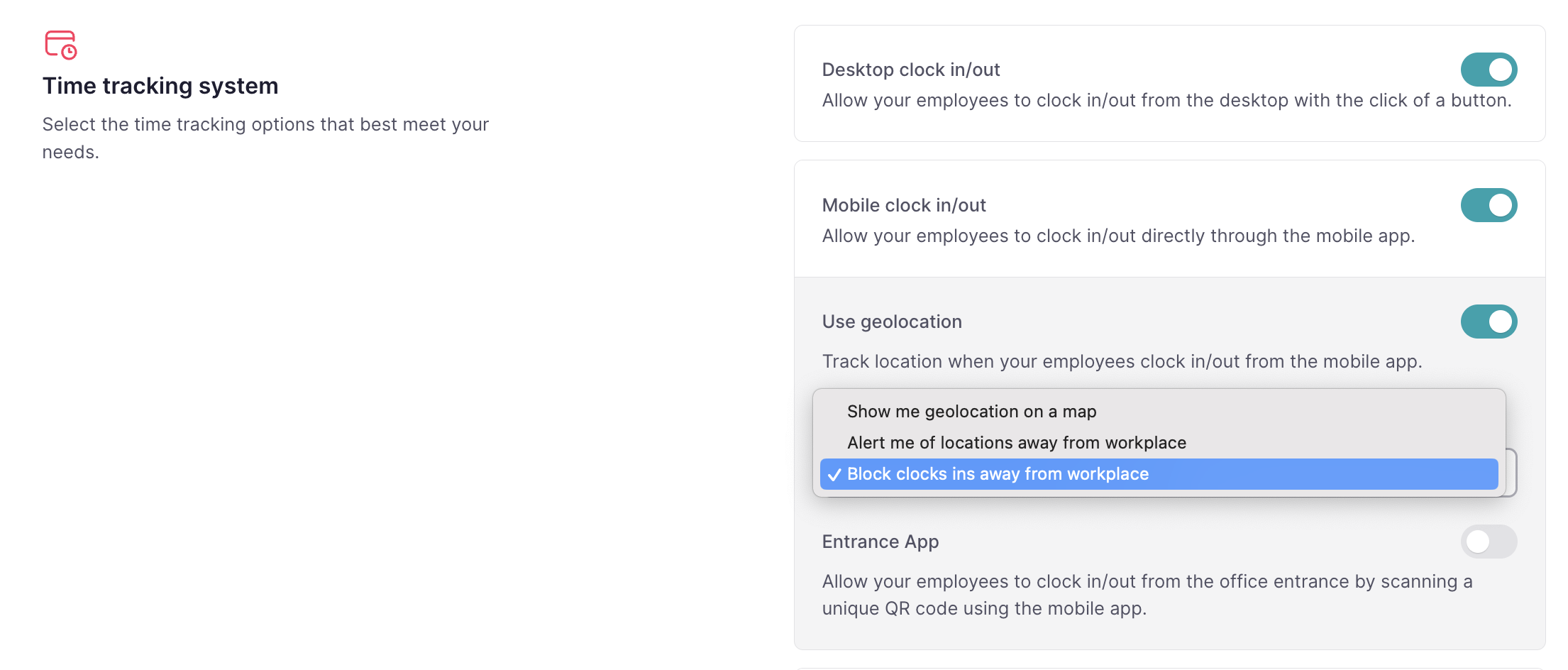
Once enabled, Factorial checks the location of the employee when they clock in or out with the mobile app, and also saves the coordinates.
What is blocked
- Clock-in and clock-out, including the clock-out of a forgotten shift.
- Start and end break on the phone, which go through the same location check.
- The employee has to be inside the clock-in area of the workplace. We allow a small margin for GPS accuracy.
- Only the workplace selected on the clock-in screen is checked. It is pre-selected from the workplace of the last shift, then the main workplace. With Shift Management, only the workplaces planned for that day are offered. Clock-out checks the workplace of the open shift.
- Block mode needs precise location on the employee's phone. Clocks made with a fake GPS location are refused.
What the employee sees
If the employee is outside the clock-in area, the app shows Outside of the expected location and asks them to be inside the expected location to clock in. They can tap Try again. If they are still outside, the app shows You couldn't clock and nothing is recorded. There is no retry limit or waiting time, so they can start again straight away.

If the app cannot get the location of the phone, the employee sees one of these messages:
| Situation | Title | Message |
|---|---|---|
| Location permission not granted yet | Enable geolocation clock in | Factorial needs your location at the time you clock in and clock out, as your company has a geolocation policy. |
| Location permission denied | Allow Factorial to use your location | Your company has a geolocation policy for clock in and clock out. If you have questions, please contact your manager. |
| GPS or location services off | We can’t locate you | It looks like location services are turned off for this device. We need your location for clock in and clock out. |
| Precise location off | Confirm your location | Turn on precise location to ensure accurate location and clock-in. |
| Location not found | - | Your location could not be retrieved, please try again in a place with a better GPS signal. |
Work from home and business trips
This functionality is compatible with work location tracking. If it is on, only Clock in from office is checked against the workplace. Clock in from home and Clock in from business trip are never blocked or flagged. If work location tracking is off, every mobile clock-in is treated as office and checked.
Geofencing alerts
Factorial provides three different geofencing alerts to efficiently manage all the employees' location issues:
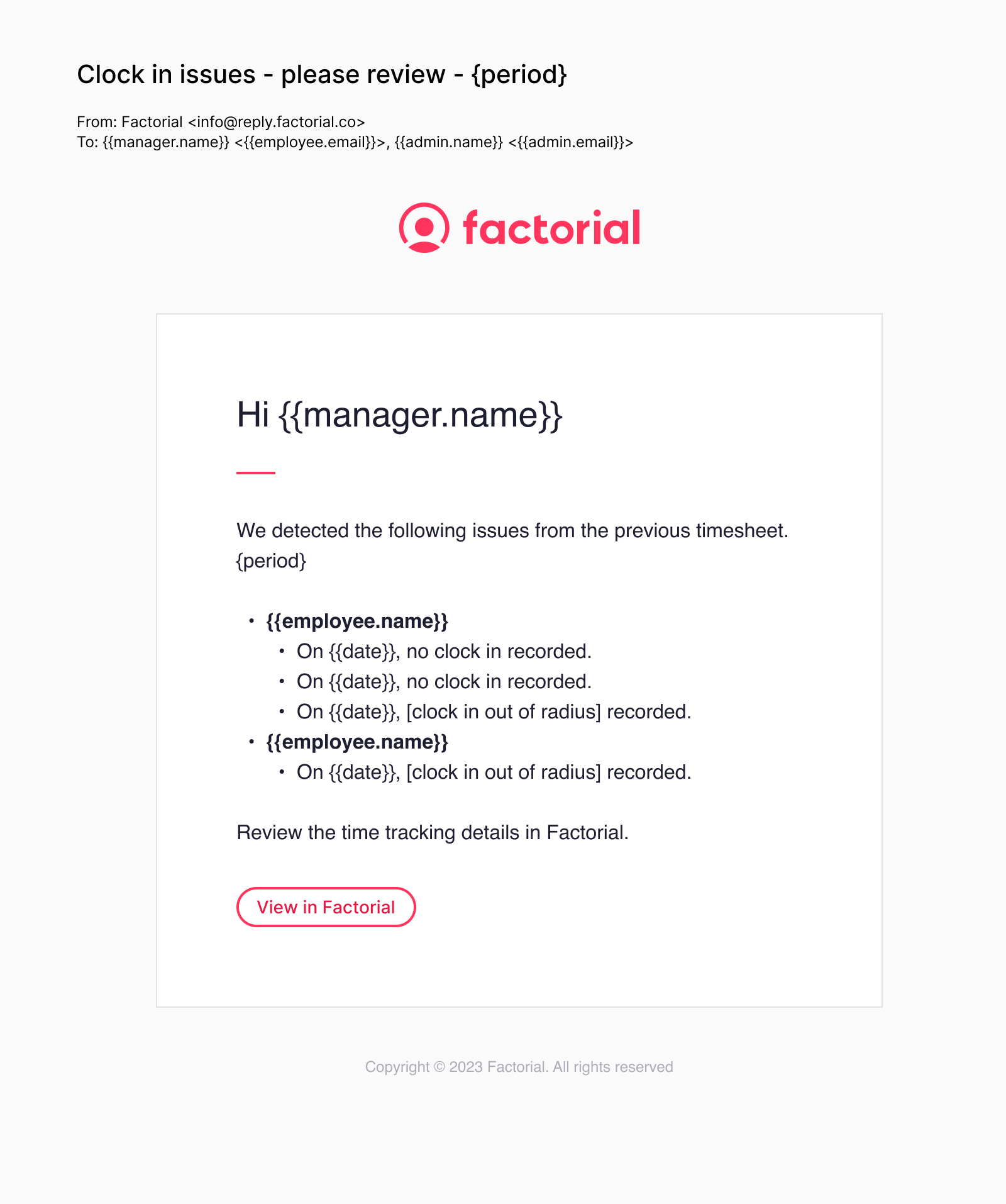
- A real-time email to the direct manager for each clock made outside the area.
- A weekly summary email, sent on Mondays.
- Markers in the timesheet: a warning on the location tag, and a Location issues filter.
These alerts also stay on when blocking is selected, but they rarely appear because blocked clocks are not saved.
Geofencing alerts by email
Email alerts are sent directly to managers, providing real-time updates on location issues. These location issues are also included in the weekly summary.
Limitations
- Geofencing only applies to the mobile app. It does not apply to web or desktop, kiosk or shared devices, QR code (Entrance App), face recognition or the API.
- The web never captures coordinates, so if the policy allows web clock-in, employees can clock in from anywhere.
- There is no restriction by IP address or Wi-Fi.
- The minimum radius is 50 m.
- Only one workplace is checked per clock.
- Clocks created through the API and manual timesheet edits are not checked.
- Geofencing is not compatible with the Entrance App (QR).
How to download time tracking report with geolocation coordinates
Only Administrators can download time tracking reports.
- On your sidebar, go to Time tracking
- Click on the three dots icon, in the upper right corner
- Select Download export
- Choose Export type: PDF
- Select employees
- Define a time slot
- Submit

Once the export is ready, you will receive an email.

You will receive an email with the exported file. You will find the file also in Documents:
- On your sidebar, go to My Documents
- Scroll down untin you find it

Time tracking exports with location issues
Export a report that includes the location assigned to each shift and identifies shifts performed outside the designated radius.
- On your sidebar, go to Time tracking
- Click on the three dots icon - in the upper right corner
- Select Download report
- In Export type, select Time tracking export - Workplaces and geolocation
- Fill in the other fields
- Click on Submit

Once the export is ready, you will receive an email.
You will receive an email with the exported file. You will find the file also in Documents:
- On your sidebar, go to My Documents
- Scroll down untin you find it